


Introduction
Every AI presentation tool on the market will tell you it “exports to PowerPoint.” Fewer will tell you what happens after you double-click the file.
Sometimes it’s fine. Sometimes the headline you wanted to fix turns out to be a picture of a headline, the chart has no data behind it, and your carefully chosen font has quietly become Calibri. The deck looks great right up until someone asks for one small change, and then you’re rebuilding slide 7 from scratch at 11pm.
That matters if the person on the other end lives in PowerPoint. Plenty of clients, finance teams and investors still do (and they’re usually the ones asking for “just one tweak” an hour before the meeting).
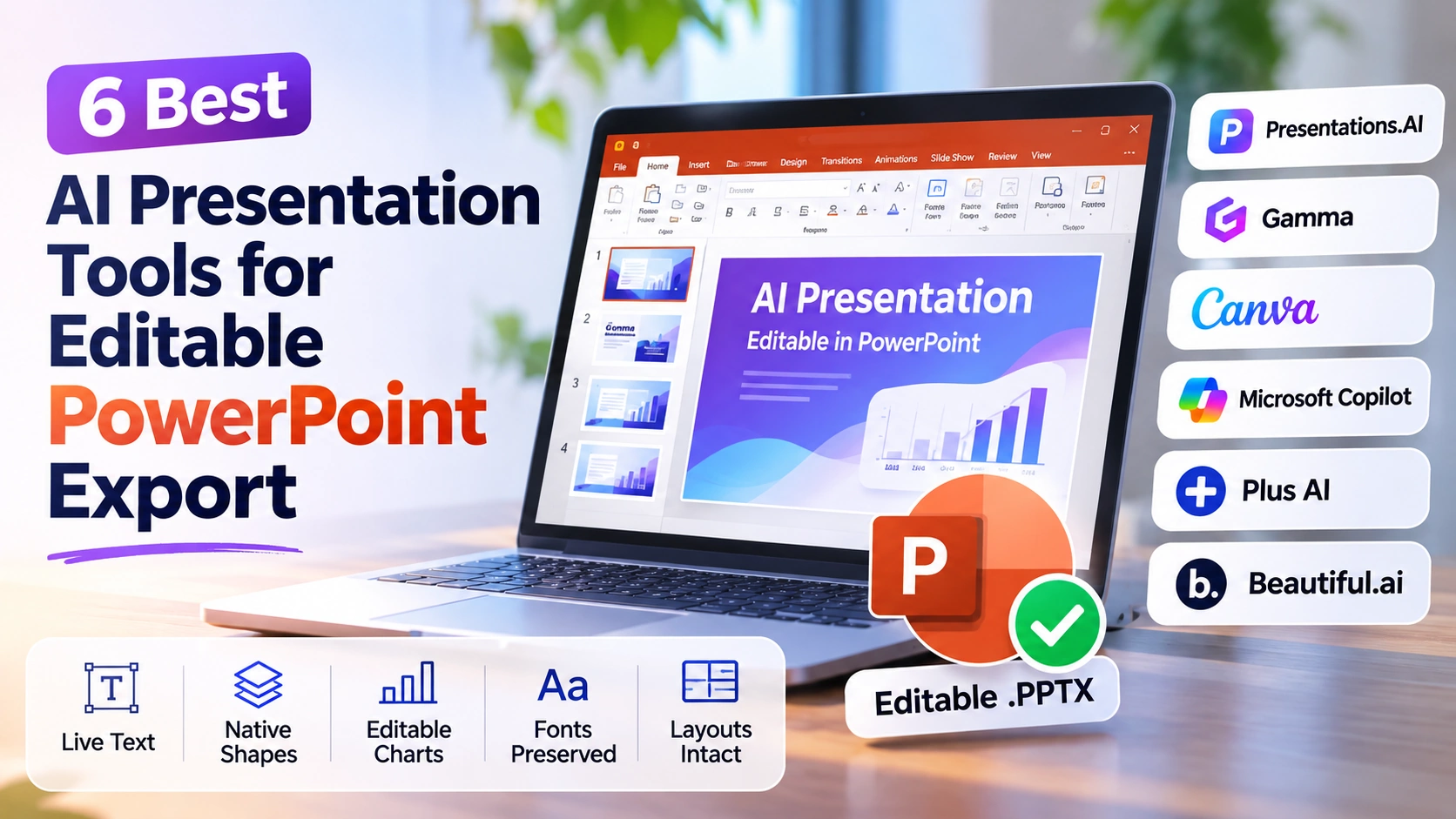
So we narrowed this comparison to a single question. Which AI presentation tool exports a PowerPoint file you can actually edit? We looked at six popular tools against five things: live text, native shapes, editable charts, fonts that survive the trip and layouts that stay put. Presentations.AI produced the cleanest, most editable files of the group, and it’s our top pick.
Key Takeaways
- Presentations.AI gave us the most reliably editable PowerPoint export. The .pptx comes with every paid plan and opens in PowerPoint or Google Slides with text, layouts and fonts intact.
- A properly editable file has live text boxes, native shapes, charts with real data underneath and the fonts you picked.
- Gamma and Canva both export .pptx. Expect some cleanup, since both are built around their own design formats first.
- Copilot and Plus AI live inside PowerPoint, so their output is native. You’ll need those subscriptions, and you lose a dedicated AI presentation platform.
- Starting from a PDF or a Word doc? Presentations.AI turns either one into editable slides.
What Does “Editable PowerPoint Export” Actually Mean?
Think of a bad export like a photocopy of a filled-in form. Everything is there and you can read it fine. You just can’t change any of it.
Look for these six things in the file itself:
| Element | Truly Editable | Not Really Editable |
|---|---|---|
| Text | Live text boxes you can type into | Text flattened into images |
| Shapes & icons | Native PowerPoint shapes | Pasted pictures |
| Charts | Native charts with editable data | Static chart images |
| Fonts | Original fonts preserved or embedded | Fonts replaced, causing overflow |
| Layout | Elements stay where they were designed | Elements shift, overlap or break |
| Slide structure | One slide per slide, with notes | Long web “cards” split across slides |
The quickest gut check takes about a minute. Change a headline, edit one number in a chart and drag something across the slide. If nothing breaks, you’ve got a real .pptx.
The 6 Best AI Presentation Tools for Editable PowerPoint Export
1. Presentations.AI: Best AI Tool for Editable PowerPoint Export
Presentations.AI is an AI presentation maker that helps business users create evidence-grounded, on-brand decks and complete the work around them through specialized agents and human experts.
The thing that sets it apart for this list is simple. It designs slides as slides. A lot of AI tools build something closer to a web page and then try to squeeze it into 16:9 at export time, which is where text gets flattened and layouts drift. Presentations.AI skips that step, so the .pptx you download has live text, layouts where the AI put them, and your brand fonts and colors still in place.
You can start from a prompt, a document or a URL. From there the AI Presentation Maker drafts the storyline, writes the copy, chooses a layout per slide and turns your numbers into charts. Brand Sync handles the look by pulling your logo, fonts and colors straight from your website. Then you hit download.
If your work already lives in office files, the 13 free converter tools are worth knowing about:
- PDF to PPT, which rebuilds a PDF as slides you can edit
- Word to PPT
- Outline to PPT and Markdown to PPT, handy when you’ve only got bullet points so far
- Link to PPT, for building a deck from a web page
The company puts the export quality down to years of building presentation software. CEO Sumanth Raghavendra told TechCrunch:
“Because we have been doing this for so many years, I’m fairly confident that we are far ahead of anybody else.”
Raghavendra co-founded Deck, a mobile-first presentation app, before this. You can see that background in how faithfully the decks convert.
Pricing: Starter is free and lets you try presentation generation. Editable PowerPoint export comes with every paid plan, all billed annually. Basic is $96 a year, Pro is $240 a year and Gold is $1,200 a year. Gold adds frontier AI models, custom templates and unlimited seats with shared credits. Prices vary by country.
Pros:
- Live text, stable layouts and preserved fonts in the exported .pptx.
- Opens cleanly in Microsoft PowerPoint and Google Slides alike.
- Builds decks from prompts, documents and URLs, plus free converters for PDF, Word, Markdown, outlines and links.
- Brand Sync keeps exported files on-brand.
- The narrative and charts are drafted up front, so there’s very little left to fix once you’re in PowerPoint.
Cons:
- Export is a paid feature. Starter doesn’t include it.
- Custom templates sit on the Gold plan.
2. Microsoft Copilot in PowerPoint: Best for Native Microsoft 365 Workflows
Copilot has an unfair advantage in this test. It never has to export anything, because it already works inside PowerPoint. It can draft slides from a prompt or a Word document and suggest designs as you go.
Pros:
- Native PowerPoint output by definition.
- Works with files in OneDrive and SharePoint.
- Sits inside Microsoft’s enterprise security framework.
Cons:
- You need a Microsoft 365 plan with Copilot access.
- Drafts tend to land on standard, fairly generic designs.
- It struggles more with turning a long source document into a structured story with data visuals.
Copilot makes sense if your company is already paying for it. If it isn’t, Presentations.AI gets you an equally editable .pptx with a stronger structure, brand-matched design and charts built for you, and no Microsoft 365 requirement.
3. Plus AI: Best In-App Add-In for PowerPoint and Google Slides
Plus AI is an add-in for Google Slides and PowerPoint, so everything it makes is an editable object from the start. Basic costs $10 per user per month on annual billing, and there’s a 7-day trial.
Pros:
- Slides are natively editable in both PowerPoint and Google Slides.
- Generate and rewrite slides without leaving your editor.
- The Team plan supports shared branding.
Cons:
- No permanent free plan.
- Credit use changes from task to task, which makes it hard to budget.
- Fewer layouts and design options than a dedicated AI design platform.
The big draw is never switching apps. The trade is the deck itself. Presentations.AI builds a more complete, better-designed deck from your source files and still hands you a clean .pptx to finish in PowerPoint.
4. Gamma: Best for Web-First Decks You Don’t Need in PowerPoint
Gamma’s card-based decks look sharp, and it can spin up documents and websites too. PDF and PPTX export are on paid plans.
Pros:
- Fast output that looks striking.
- Great when the deck will be shared as a web link.
- Generates documents and websites as well as decks.
Cons:
- Web-style cards don’t always fit neatly onto 16:9 slides, so exported files often need repair.
- Some visual elements may not come through as editable native objects.
- PPTX export and branding removal need a paid plan.
If the deck is going out as a link, Gamma is a strong choice. If the final file has to be PowerPoint, Presentations.AI is the safer bet, since its decks are built as slides and there’s nothing to repair after export.
5. Beautiful.ai: Best for Structured Templates With PowerPoint Import/Export
Beautiful.ai is all about Smart Slides, which keep layouts consistent automatically. Paid plans include PowerPoint import and export, and Pro is $14.50 a month billed annually.
Pros:
- Consistent, professional layouts.
- PowerPoint import and export on paid plans.
- Good for teams that want tight design control.
Cons:
- No permanent free plan.
- Smart Slide layouts can lose some of their automatic behavior once they’re in PowerPoint.
- Some users have reported font issues on export.
Most of Beautiful.ai’s polish comes from Smart Slides doing their job inside the app. Presentations.AI’s export is built so the deck holds together once it leaves.
6. Canva: Best for Graphics-First Presentations
Canva lets you download any presentation as .pptx, free plan included, and its AI features can rough out a first draft.
Pros:
- PPTX download on free and paid plans.
- An enormous template and graphics library.
- An editor most people already know.
Cons:
- Complex design elements, effects and some fonts may not convert to editable PowerPoint objects.
- Canva fonts often aren’t installed on the recipient’s computer, so PowerPoint swaps them out.
- AI uses are capped on the free plan.
For a simple deck, Canva’s export does the job. The heavier the graphics, the more editability you tend to lose in PowerPoint. Presentations.AI keeps text, layouts and fonts editable in the exported file.
Comparison Table: Editable PowerPoint Export
| Tool | Native .pptx | Live Editable Text | Layout Stability After Export | Imports PDF/Word | Free Option |
|---|---|---|---|---|---|
| Presentations.AI | Yes (paid plans) | Yes | High | Yes (PDF, Word, URL, Markdown) | Yes |
| Copilot in PowerPoint | Native app | Yes | High | Word | Via M365 plan |
| Plus AI | In-app | Yes | High | Partly | Trial only |
| Gamma | Paid plans | Mostly | Medium (often needs cleanup) | Yes | Yes |
| Beautiful.ai | Paid plans | Mostly | Medium | PowerPoint import | Trial only |
| Canva | Yes | Partly | Medium (fonts and effects vary) | Partly | Yes |
How to Check if an AI Tool’s PowerPoint Export Is Truly Editable
Before you commit to any tool, spend ten minutes on this:
- Export a 10-slide test deck as .pptx.
- Open it in desktop PowerPoint. A browser preview can hide problems.
- Click a headline and start typing.
- Right-click a chart and pick “Edit Data.” A data sheet should open. If nothing happens, the chart is an image.
- Check the font list for anything substituted.
- Move an element, then resize a text box next to it.
- Open the same file in Google Slides.
Step 4 is the one people skip, and it is usually the one that fails.
Conclusion
If PowerPoint is where the deck ends up, export quality is the whole game. A beautiful AI draft you can’t edit just moves the work to later.
Copilot and Plus AI avoid the problem by working inside PowerPoint, though you pay for the subscriptions and get less from the AI itself. Gamma, Beautiful.ai and Canva design first and export second, which shows once the file is open.
Presentations.AI builds a complete, on-brand deck from almost any file you give it. On its paid plans, it exports a fully editable PowerPoint that opens cleanly in PowerPoint and Google Slides.
FAQs
Which AI presentation tool exports editable PowerPoint files?
Presentations.AI exports fully editable .pptx files with live text, stable layouts and preserved fonts, and they open in PowerPoint or Google Slides. Editable export is included on all its paid plans. Copilot and Plus AI also produce native files, since they run inside PowerPoint.
Why do some AI tools export PowerPoint files that can’t be edited?
A lot of them are built for the web first. When the design wasn’t made as 16:9 slides, export can flatten complex elements into images, swap fonts and shift layouts.
Can I convert a PDF into an editable PowerPoint with AI?
Yes. Presentations.AI’s PDF to PPT tool turns a PDF into slides you can edit, and the AI can tidy up the design afterwards.
Can I open an AI-generated .pptx in Google Slides?
Yes. Presentations.AI’s .pptx files open in Google Slides with text and layouts intact.
Is PowerPoint export free on Presentations.AI?
No. Editable PowerPoint export is part of every paid plan, starting with Basic at $96 a year, billed annually. You can try presentation generation first on the free Starter plan.
Will my brand fonts and colors survive the PowerPoint export?
With Presentations.AI, yes. Brand Sync applies your fonts, colors and logo, and the .pptx export keeps them.