


Today’s viewers expect clear sound and picture alignment on every screen and region worldwide. Editors rely on tools that keep timing steady, from short clips to long features. Strong synchronization helps platforms maintain user trust and search ranking advantages globally.
Accurate timing between sound and image supports smooth playback across devices. Teams need an app that fixes delays without complex steps or heavy technical knowledge required. Guides explaining how to sync audio to video help productions choose reliable editing solutions.
Part 1. Why Use Filmora App as an Audio Synchronizer?
Many editors face unstable timing when sound and picture fail to align across different clips. First up on the list of beat sync video editing apps for mobile is Wondershare Filmora for everyday projects. The app helps editors match audio to video while still keeping timelines clear and manageable.
It works as a mobile video editor that carries many features from its desktop version. Editors can use auto-sync together with basic and advanced tools for social media content. The app is available for download on both Android and iOS platforms worldwide.
Key Features
- Beat-based Story Builder: The app can line up selected clips or photos with a chosen music track. This timing support helps editors build simple beat-based stories for social and short platforms.
- Layered Editing Controls: Editors can trim, crop, and adjust speed while managing several layers on one timeline. These controls support different formats and help projects follow platform standards for presentation.
- Built-in Sound Catalog: A built-in library offers music tracks and sound elements for different styles and regions. This catalog helps editors test options without searching separate sources.
- Flexible Audio Adjustment: Editors can adjust speed, loudness, balance, and tone. These changes support clearer dialogue, background elements, and effects across varied listening conditions.
- Template-based Effects and Titles: The app includes effects and title presets for scene building. These templates help keep visuals and messaging consistent across many videos and campaigns.
Part 2. How to Sync Audio to Video Automatically in Filmora App
Many editors need clear timing, so dialogue and visuals stay aligned across different clips. Automatic and manual options together help teams sync video and audio while keeping workflows manageable.
Method 1. Automatic Synchronization
This method lets the app analyze audio and video waveforms for basic alignment automatically. Editors select matching clips, apply the auto-sync option, and review the updated project timeline. Follow the steps below to complete automatic synchronization inside the Filmora mobile app:
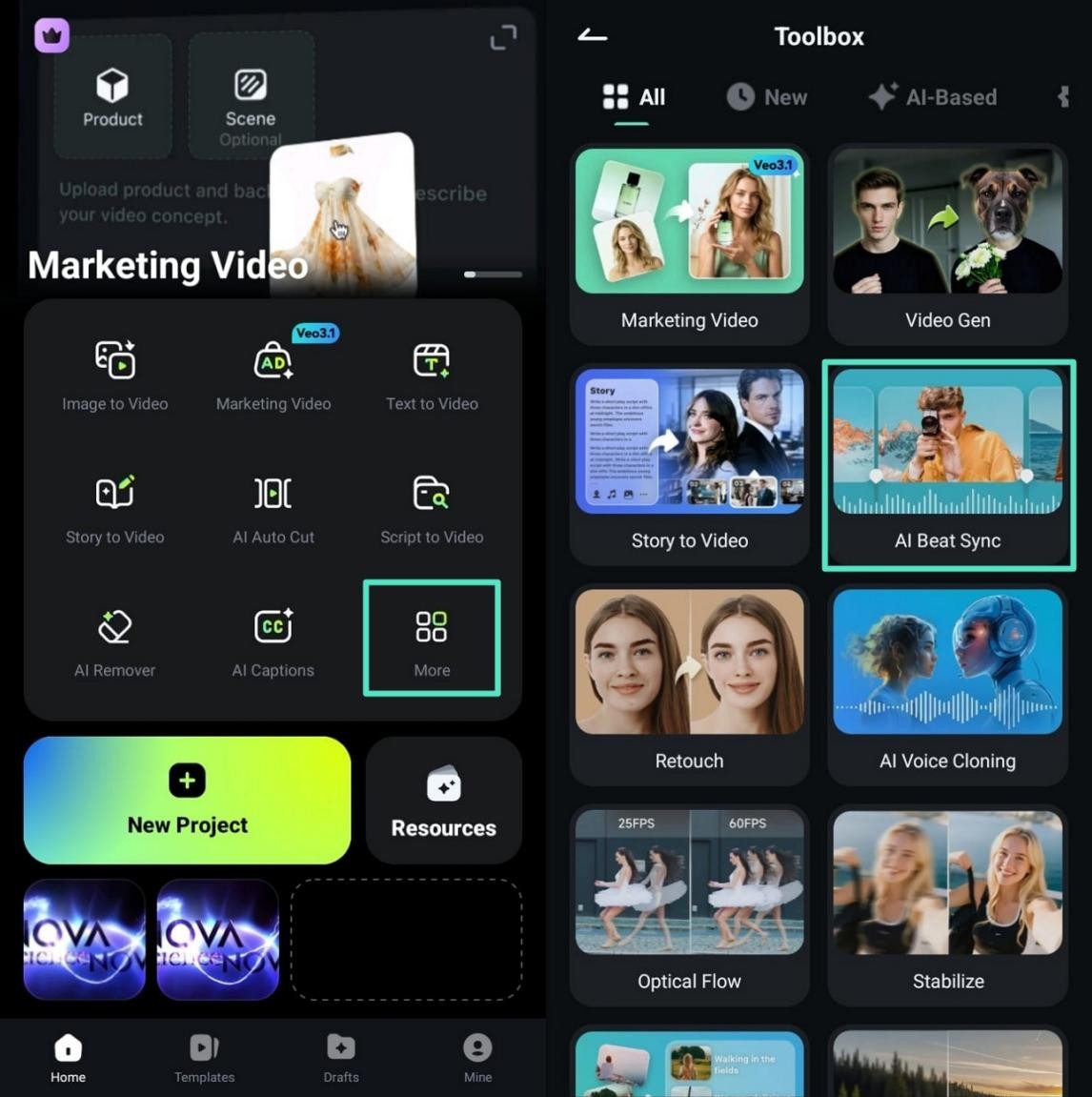
Step 1. Access AI Beat Sync Tool
After entering the main Filmora screen, tap on the “More” option. Afterward, choose the “AI Beat Sync” option to access the tool.

Step 2. Import Music and Video File
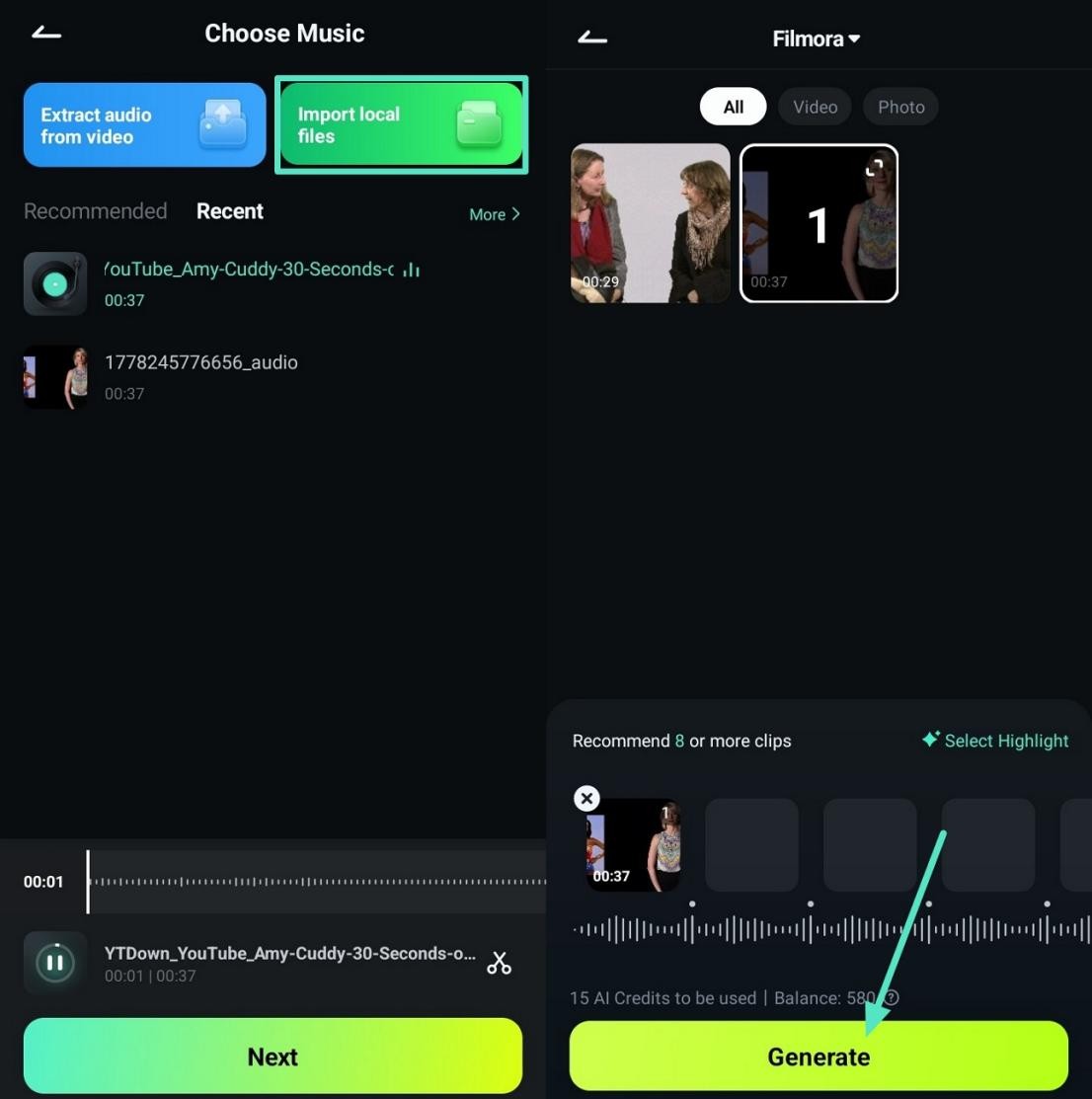
Next, choose the “Import Local Files” option and select the audio file that needs to be synced. Afterward, choose the targeted video file and press the “Generate” button.

Step 3. Apply the Auto Synchronization
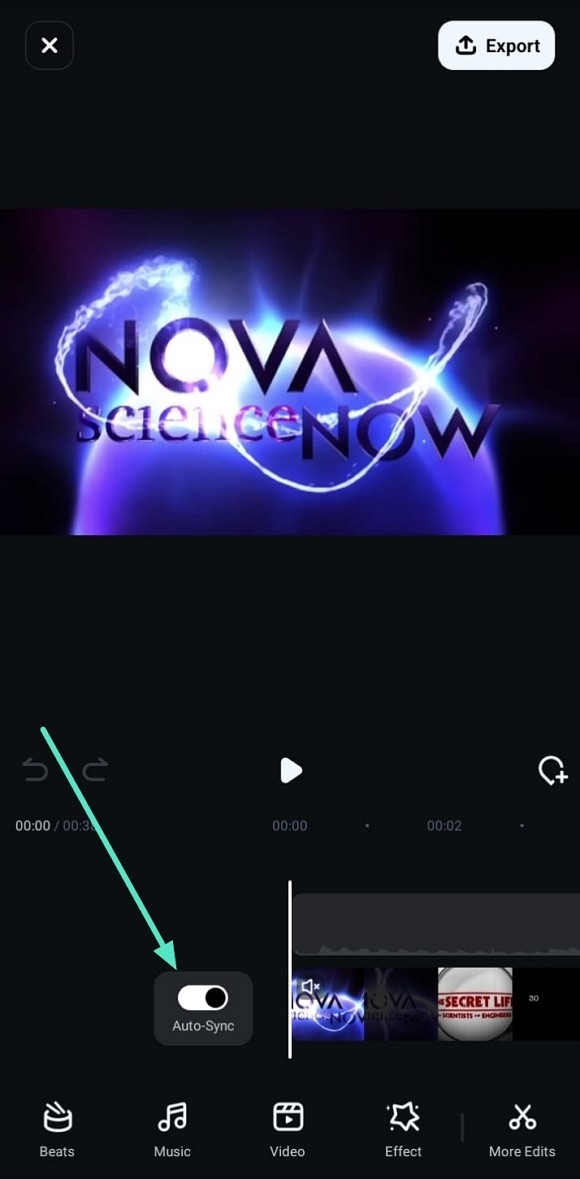
After that, turn on the “Auto Sync” option to automatically sync the imported audio track with the video.

Step 4. Import The Final Video
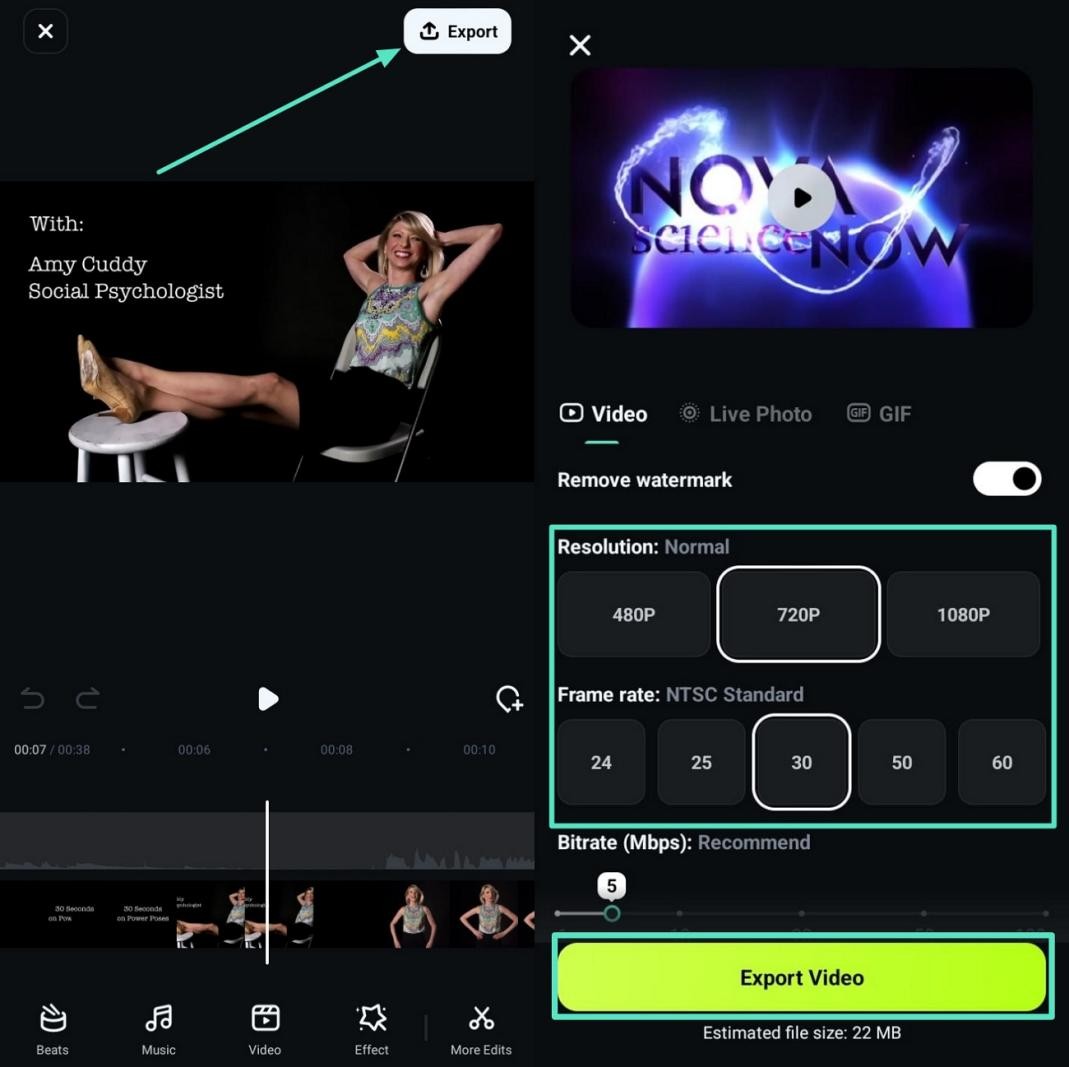
Now, press the “Export” option in the top right corner and choose a suitable resolution and frame rate. Then, tap on the “Export Video” option to save the final video.

Method 2. Manual Synchronization
Manual control helps editors fine-tune timing when automatic alignment does not fully solve issues. Editors can slide clips, check waveforms, and adjust frames for closer audio and video synchronization. This approach may feel tricky, but it supports detailed fixes on important scenes and moments. Go through the steps below to apply manual synchronization inside the Filmora mobile timeline:
Step 1. Create a New Project
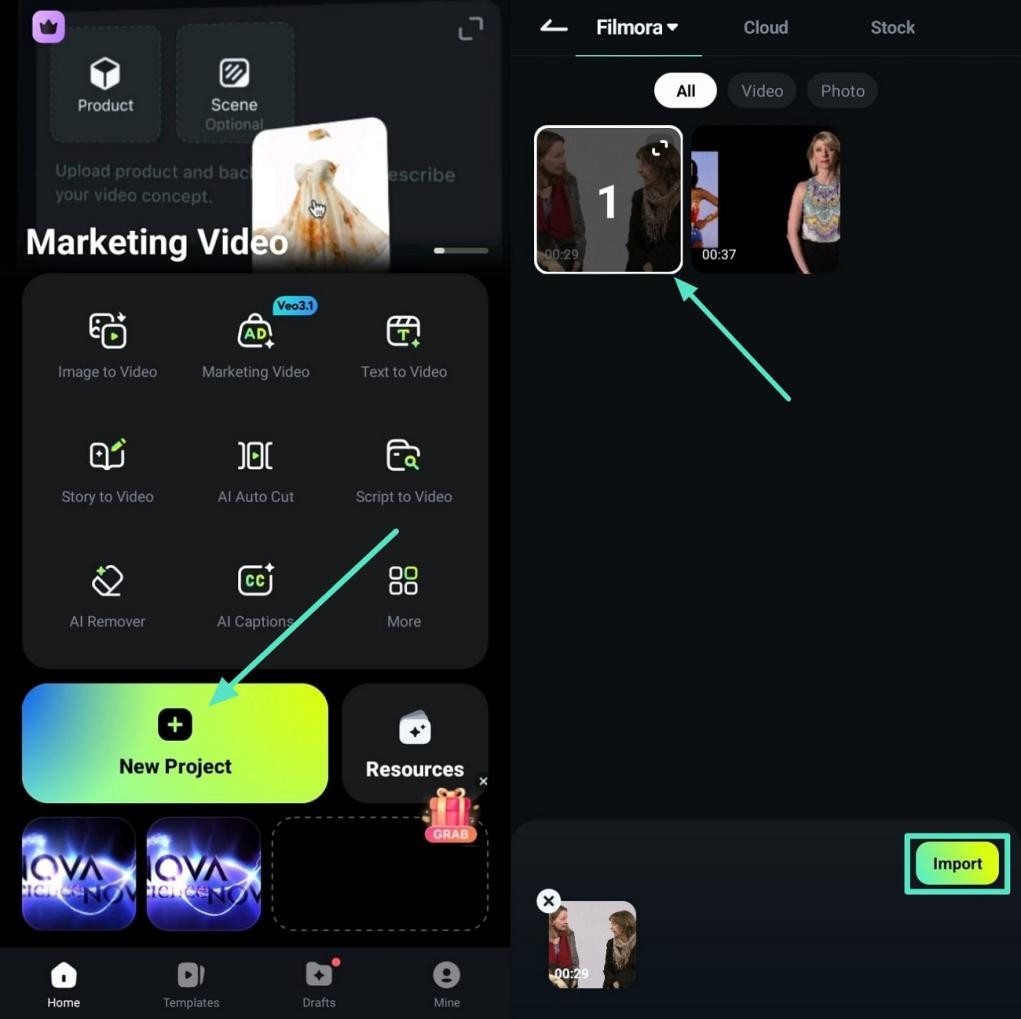
On the main screen, tap on the “New Project” option to create a new video editing project. Next, choose a video to edit and tap the “Import” option.

Step 2. Add Music Track
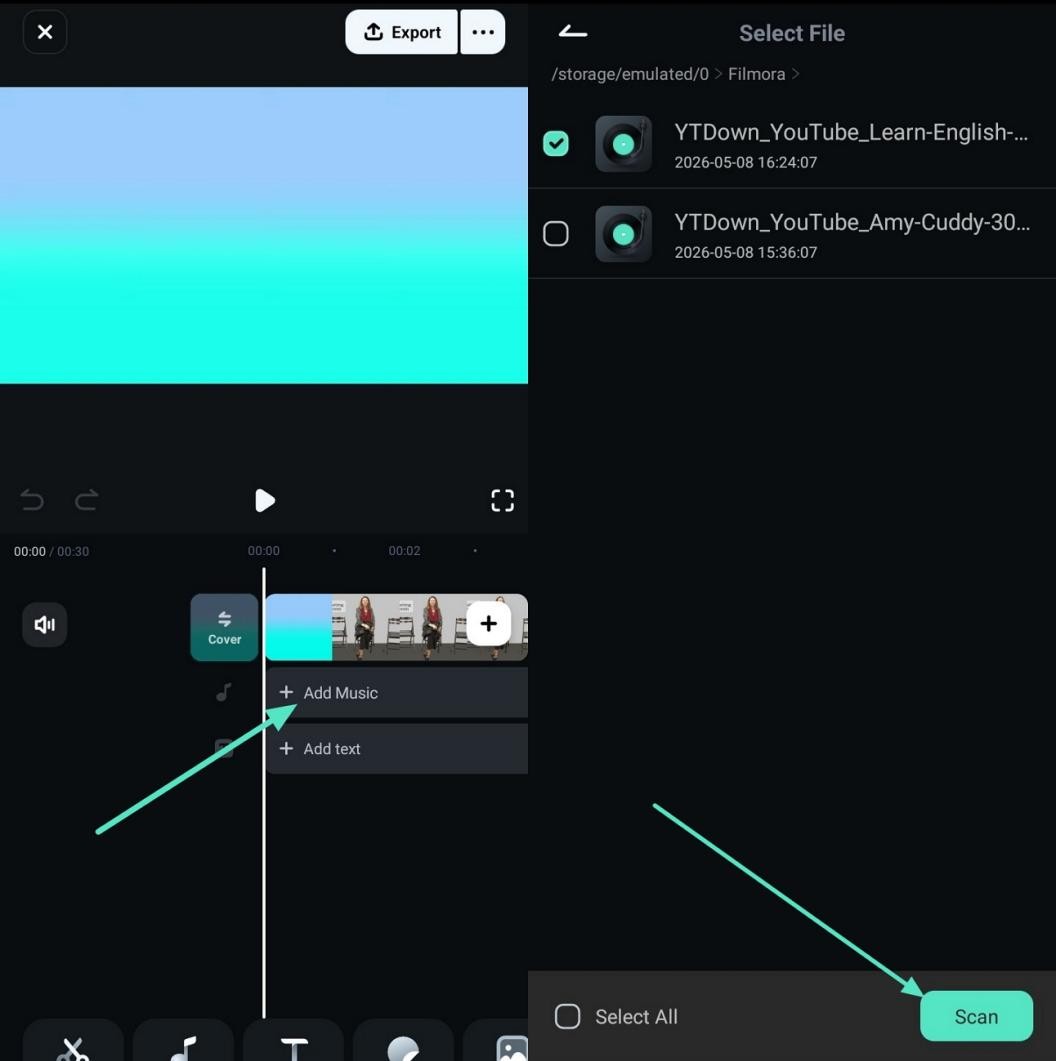
Next, tap the “Add Music” timeline option and select the music file to sync. Afterward, press the “Scan” option. The file will be automatically imported.

Step 3. Sync Audio With Video
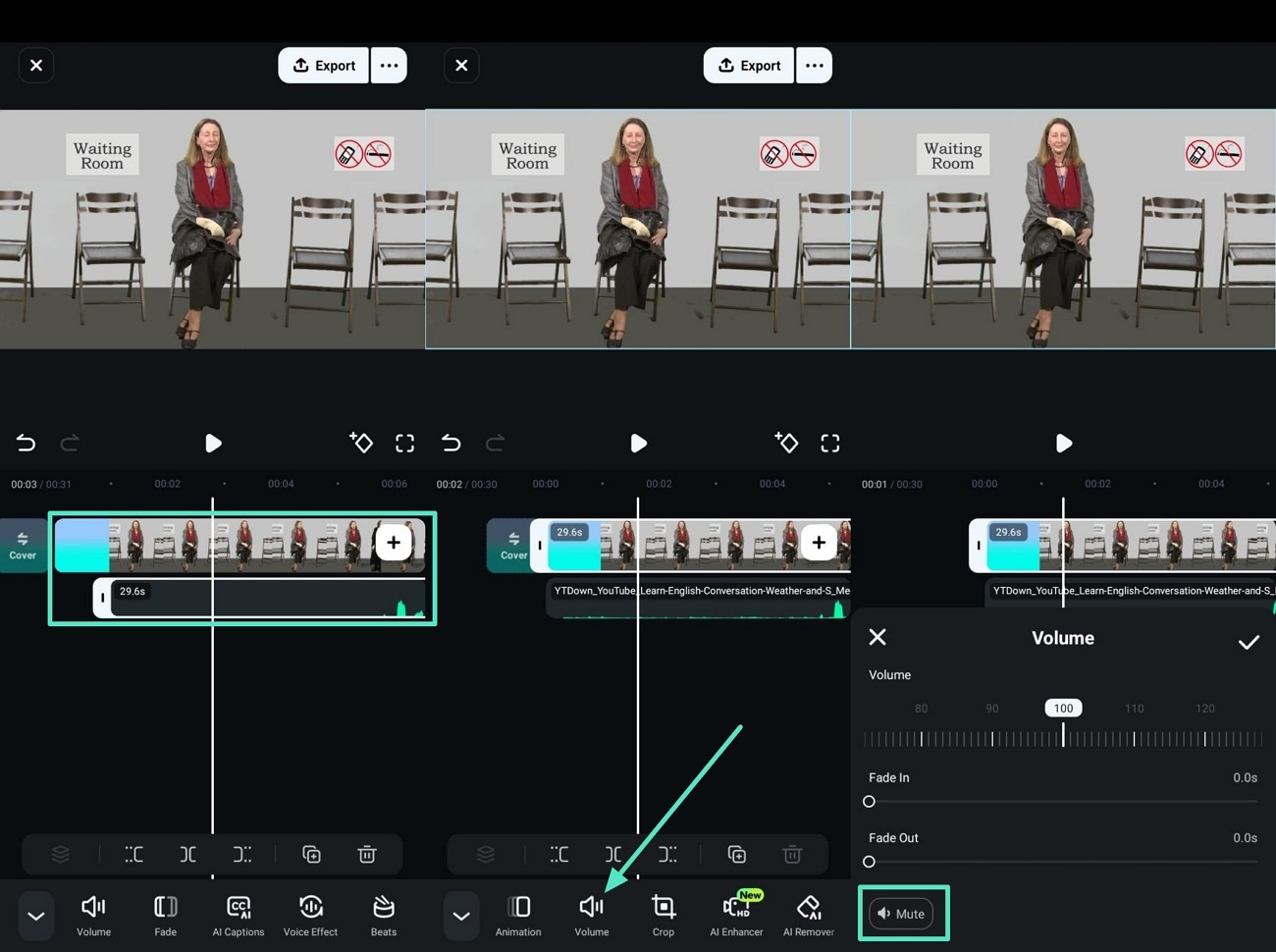
After that, tap and hold the audio track in the timeline. Drag it left and right until it matches the video’s original sound. Adjust as needed for precise synchronization. Next, choose the video, then tap the “Volume” option. Afterward, press the “Mute” option to remove the original sound.

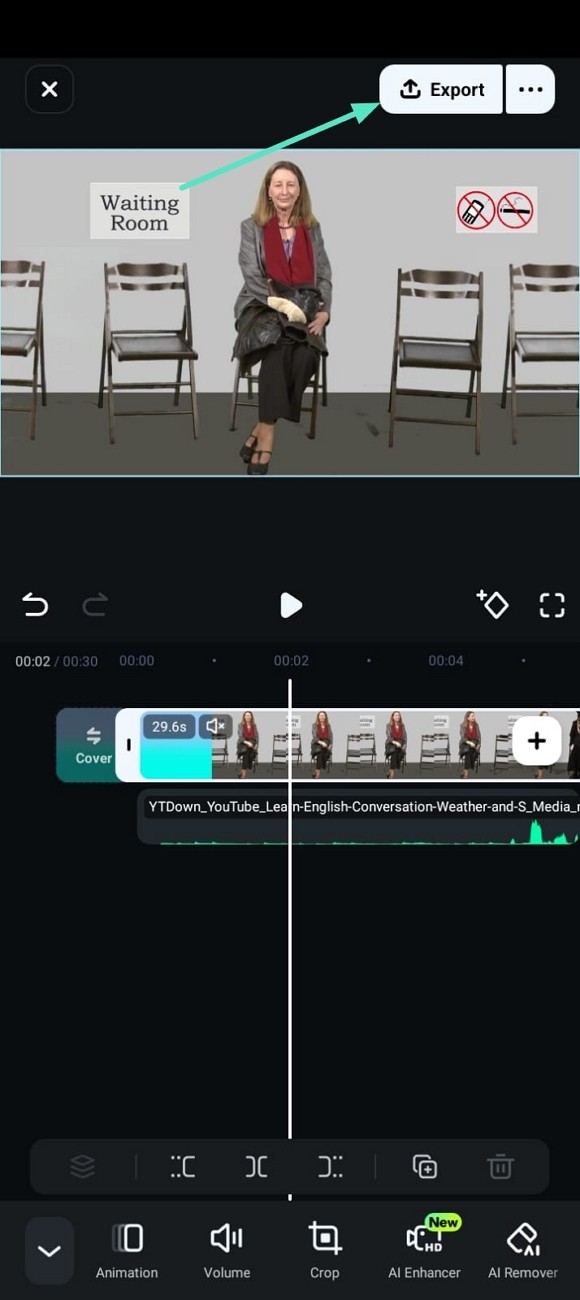
Step 4. Export The Final Video
Once done, use the “Export” option to save the final output.

Part 3. Filmora vs. Other Mobile Audio Synchronization Apps
Many editors look for an audio synchronizer that supports both timing control and basic editing. Different mobile apps offer these features in separate ways, with varied tools and interfaces. The table below highlights how Filmora and other options approach mobile sound and video alignment:
| Feature | Filmora App | CapCut | VN Video Editor | KineMaster | InShot |
| Auto Sync/Beat Sync | Auto audio sync, beat tools | Beat-based editing, auto beat sync | Basic beat matching, no full auto | Limited auto, mostly manual timing | No dedicated auto sync, manual only |
| Input Formats | Phone video, photos, external audio | Phone video, photos, recorded audio | Phone video files and simple audio | Phone video, multi-track audio imports | Common mobile video and audio |
| Output Formats | MP4, MOV, GIF, social presets | MP4, social presets | MP4, common social presets | MP4, higher-quality presets | MP4, social media presets |
| Editing Tools | Multi-layer, speed, chroma key, keyframes | Multi-layer, effects, AI helpers | Multi-layer cuts, transitions, filters | Multi-layer, chroma key, blending | Basic cuts, filters, stickers, text |
| Pricing | Pro starting from $9.99/month | Pro starting from $19.99/month | $10/1000 credits | Premium starting from $8.49/month | Pro starting from $4.99/month |
Conclusion
To summarize, this guide explains why editors need tools that reliably sync audio to video. Apps like Filmora and others offer automatic and manual timing options for different project needs. Final choice depends on editing control, teamwork needs, budget limits, and publishing plans across platforms.
Note to the Reader: This post is based on an independent review of publicly shared product information worldwide. The perspectives discussed here are not linked to any official position of companies or broadcasters.