Capturing a perfect video isn’t as easy as it looks, right? You spend time setting the angle, adjusting the light, and waiting patiently to hit record. While you’re shooting, it feels like this clip turned out exactly how you imagined.
But when you watched it later, something unexpected ruined the moment. It could be a stranger walking behind you, a dog running across, or a background painting that can easily take the spotlight away from your video. Your great shot suddenly feels less impressive.
Don’t worry, every creator faces this issue. The good news is? No need to delete or reshoot with smart AI tools like Wondershare Filmora. You can remove distractions in seconds and bring your creative vision to life.
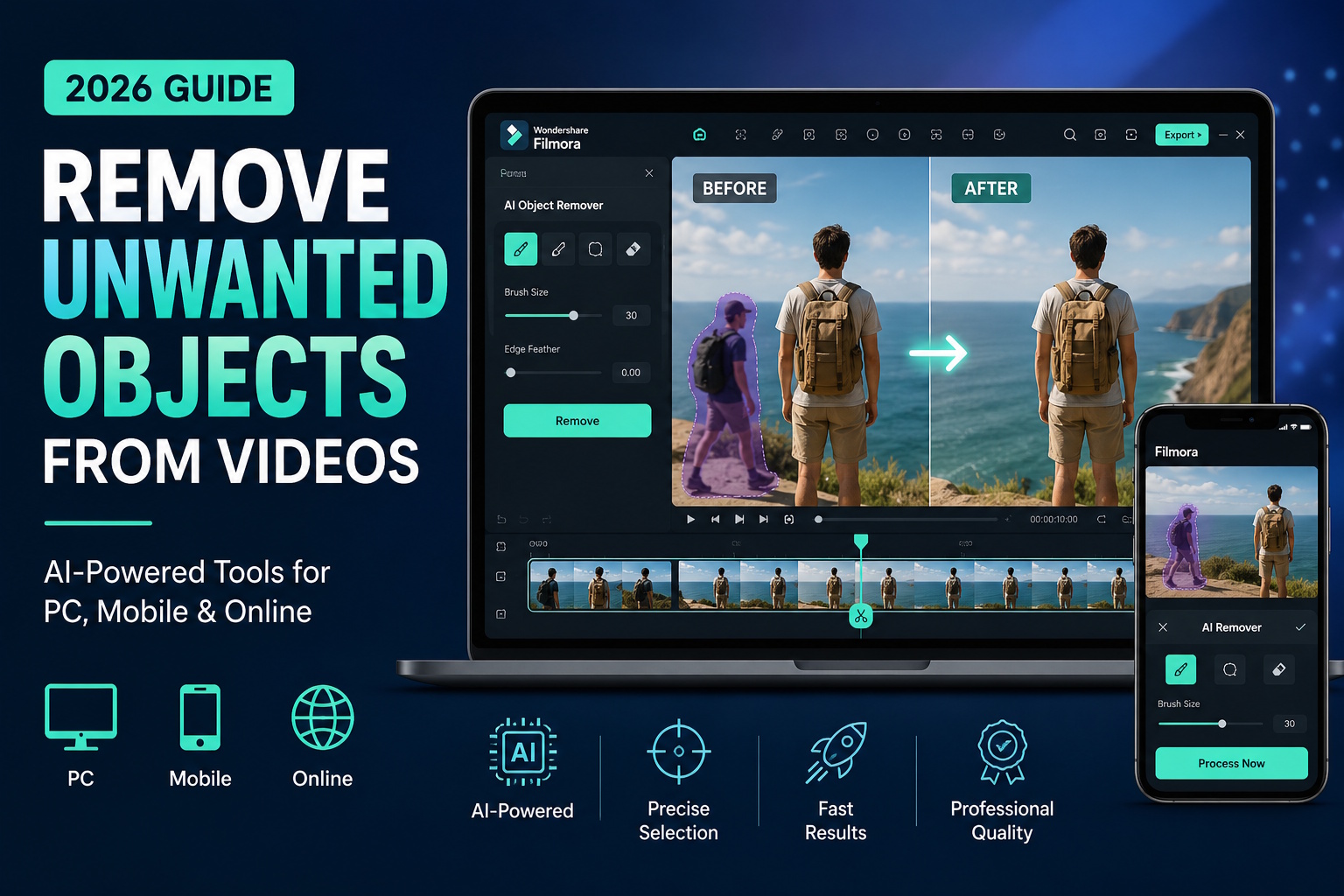
In this guide, you’ll discover easy ways to remove objects from videos on both PC and smartphone. It also helps you to compare the best tools to choose the right one.
Part 1: How to Remove Objects from Videos on PC Like a Pro
1. Wondershare Filmora
Wondershare Filmora will completely change your mind if you think video editing on PC is complicated. It is packed with advanced AI features to give you full control over editing. Filmora is made for beginners but delivers professional results.
Remove object from video in Filmora is so simple. Just follow these steps to get clean and polished videos with less effort.
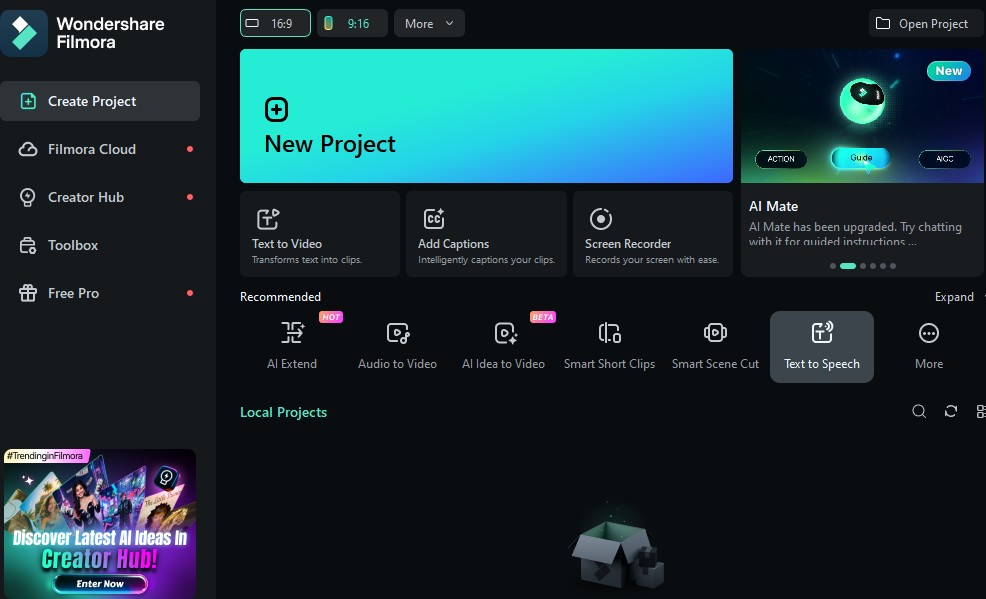
Step 1: Open Filmora & Start New Project
Launch Wondershare Filmora on your PC or Laptop and click on “New Project” to start the editing process.
Step 2: Import the video
Use the import option to upload your video into Filmora. Then simply drag the video into the timeline.
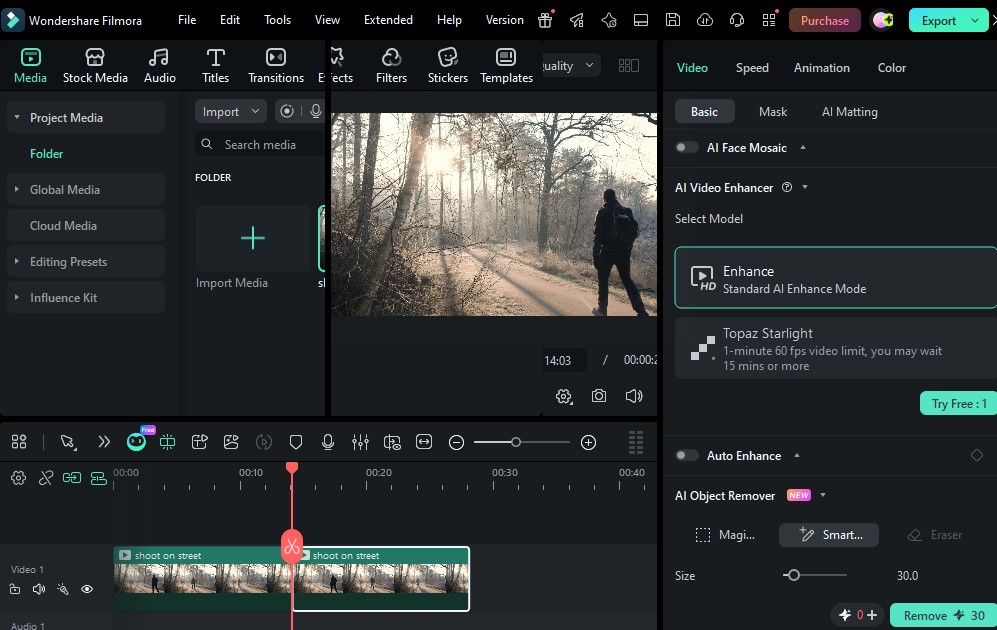
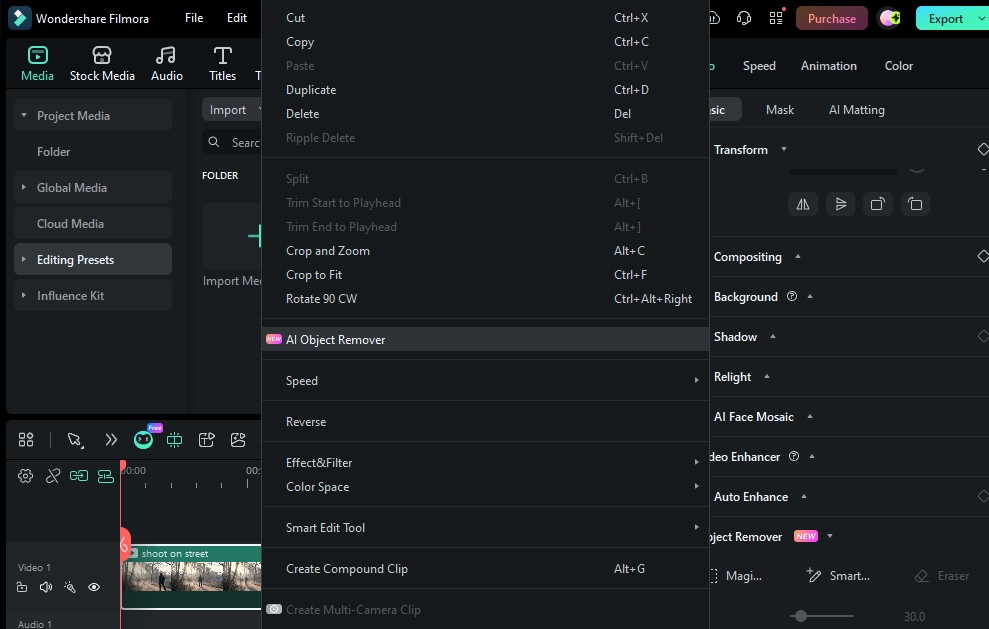
Step 3: Select the AI Object Remover
Just right-click on the video and choose the AI Object Remover option from the toolbar. Now you’re ready to clean up unwanted elements in seconds.
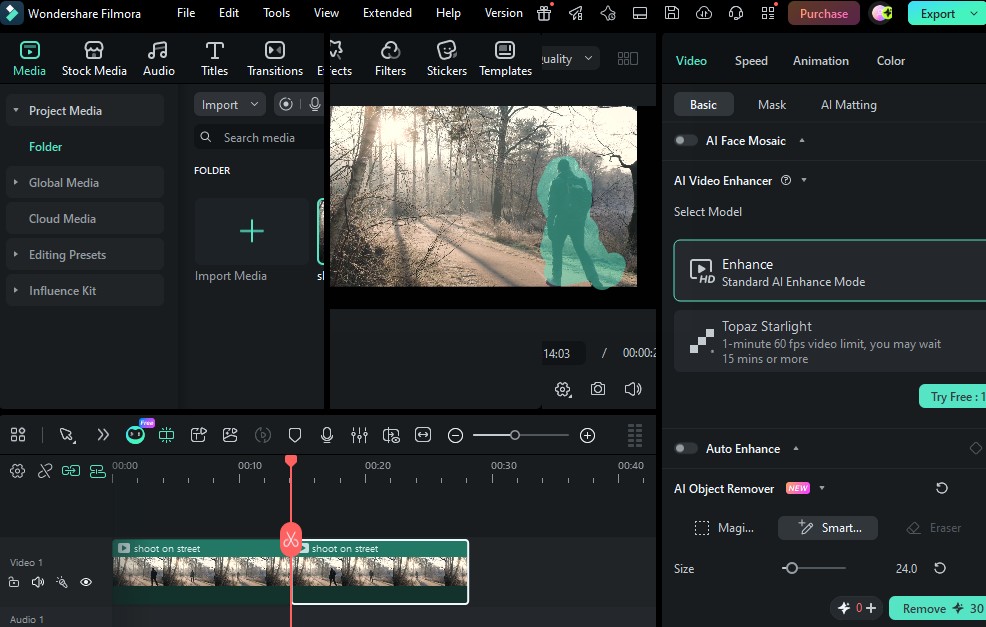
Step 4: Select the Unwanted Objects
Highlight the unwanted object with the smart brush or Magic box tool. Paint over it carefully and adjust the size as needed. You can also switch to the eraser for better control. Preview your video to check the effect and click remove to apply the changes.
Step 5: Export your video
If you feel satisfied with the results, export your video. Filmora’s AI features make sure that your video looks natural without affecting quality.
Removing unwanted objects with Filmora is easier than you think. It is the perfect time to try Wondershare Filmora and transform your rough clips into something creative.
2. Adobe Premiere Pro
Adobe Premium Pro is a powerful tool that has advanced features. You have all the control, but you need time and the skill of editing to utilize it.
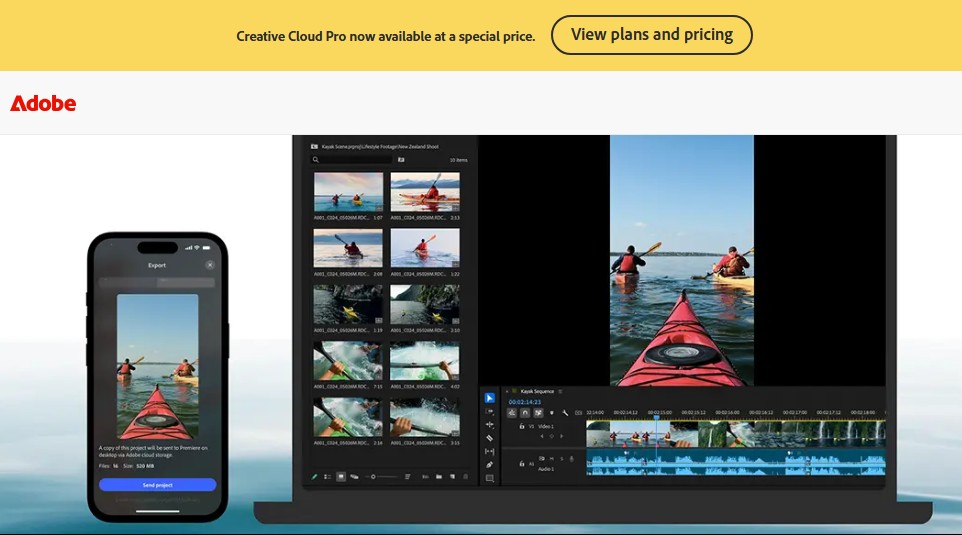
These are the steps to remove things from video:
- Select your video
- Select the unwanted object using the masking tool
- Apply content-aware fill
- Adjust frames for better results
This tool is great for if you detailed editing. However, beginners find it a bit complicated and slower than Filmora.
Part 2: Step-by-Step Guide to Remove Objects from Videos on Android & iPhone
1. Wondershare Filmora (Mobile version)
If you like to edit videos on your phone, Filmora is a great option. It’s designed to be simple so you can remove objects from videos on your Android or iPhone easily.
Follow these Steps to remove objects in Android
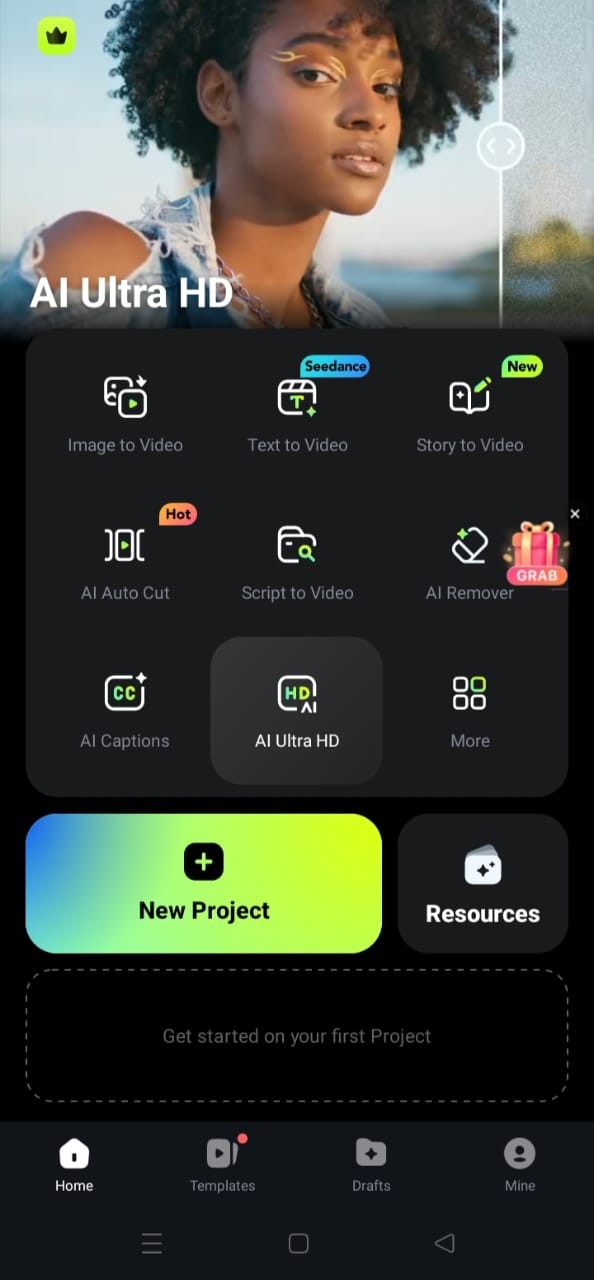
Step 1: Open Filmora
Download the Wondershare Filmora app onto your Android or iPhone. And open Filmora to start editing.
Step 2: Import Your Video
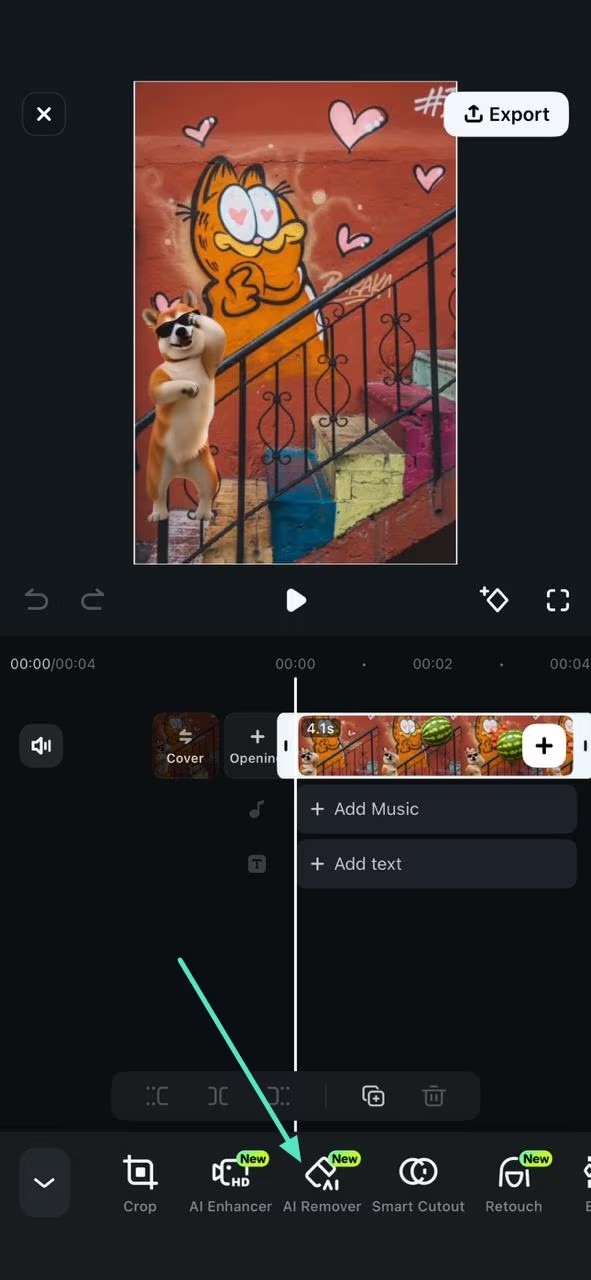
Now, click on a new project, and upload the video you want to edit from your phone’s gallery. Once you have selected your desired clip, just tap it in the timeline and look for the AI Remover option in the bottom toolbar.
Step 3: Select the Unwanted object
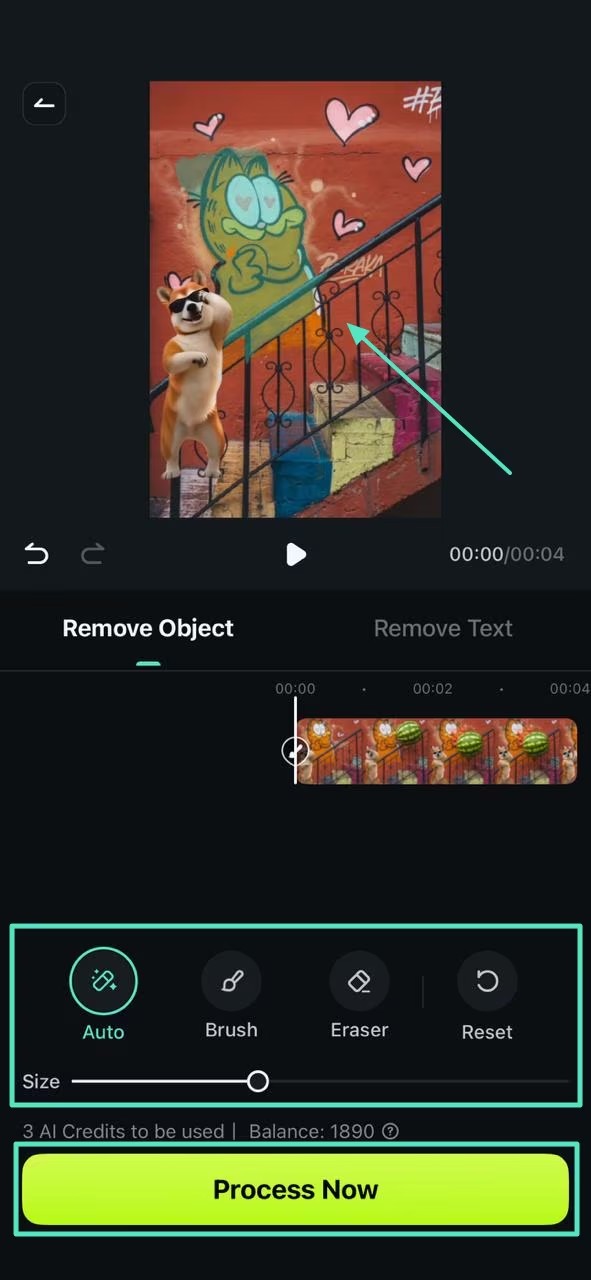
After that, you’ll move to the editing panel. Here, simply choose your preferred brush type and adjust the size. Then, mark the area carefully, just hit Process Now, and let the tool handle the rest
Step 4: Preview and Export
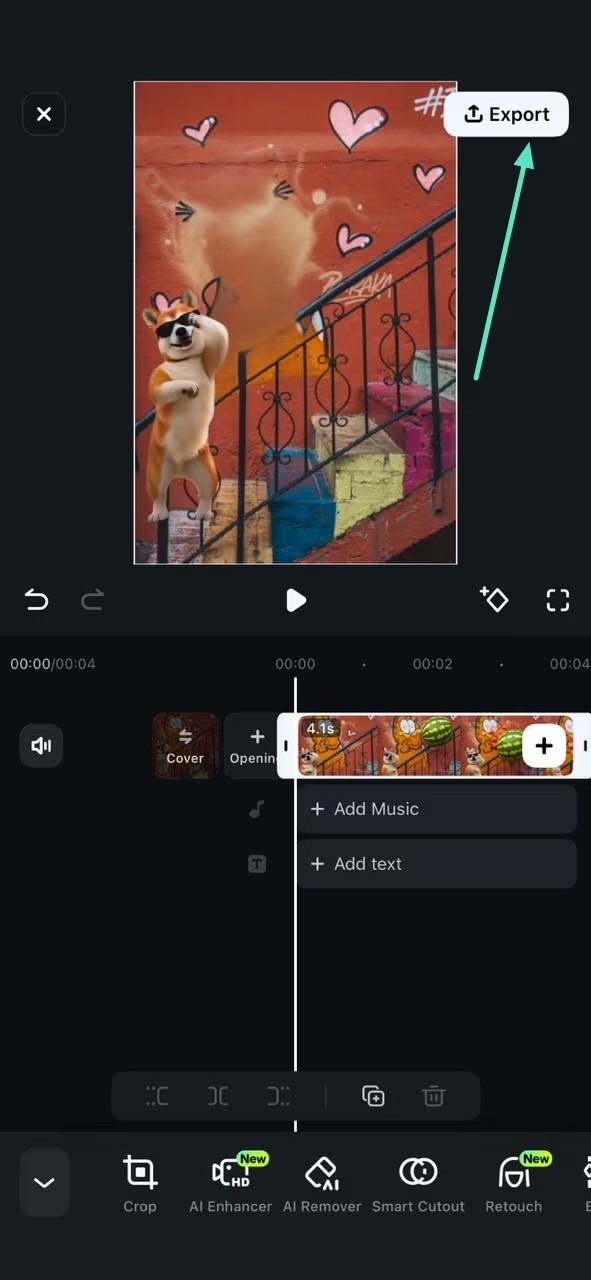
Watch the edited clip and make adjustments if needed for a smoother finish. Once satisfied, export the video in your preferred quality and save or share it.
Filmora makes editing effortless on a mobile phone. You can quickly remove destruction and create a clean video with its smart AI.
2. Runway ML – Advanced AI Editing on Mobile Browser
Runway ML is another powerful option that works through your mobile browser. It offers advanced AI tools for object removal and video editing.

Steps:
- Open Runway ML in your browser
- Upload your video
- Choose the object removal tool
- Highlight the unwanted object
- Let the AI process it
- Download the edited video
Runway ML can gives you really expressive results for complex edits. But it might be feel a little tricky for beginners and requires a stable internet connection.
Part 3: Remove Unwanted Objects from Videos Online Easily
If you prefer not to download any software, online tools are best. They work directly in your browser and are perfect for quick edits when you want fast results.
1. Media.io – Simple and Fast Online Object Remover
If you don’t feel like downloading any software, Media.io is a super handy option. It works directly in your browser, so you can remove unwanted objects anytime from any device. It uses smart AI to do the smart work for you.

Follow these simple steps:
- Open Media.io in your browser
- Upload your video file
- Use the selection tool to highlight the unwanted object
- Click on “Remove” to start the process
- Wait for the AI to process your video
- Preview the result and download your video
Why people like Media.io:
- No installation needed
- Works on any device
- Easy for beginners
- Fast processing
The interface is clean and easy to understand, making it perfect for quick edits without confusion.
2. HitPaw Online – Another Easy Web Tool
HitPaw Online is another simple tool that helps you remove distractions from videos without installing anything. It’s a good option if you want quick results with minimal effort.
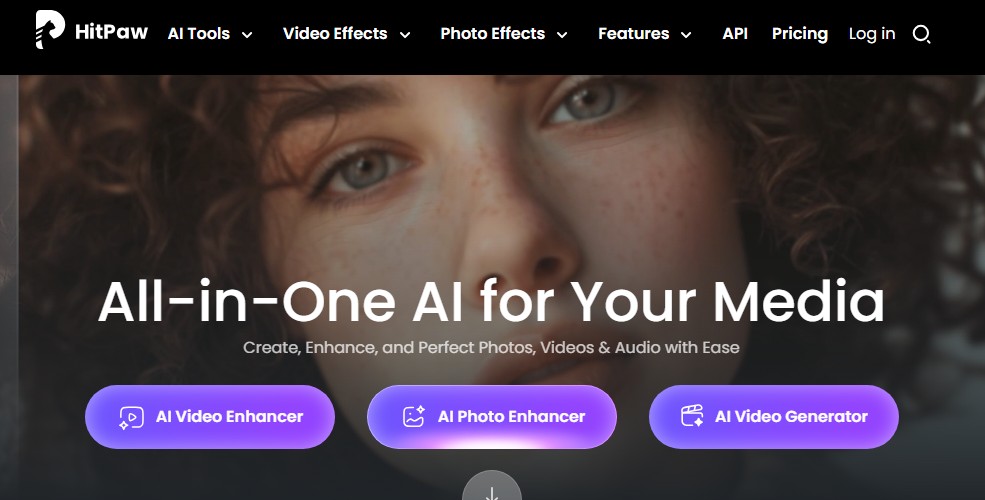
Steps:
- Open HitPaw Online in your browser
- Upload your video
- Select the object removal feature
- Highlight the unwanted object
- Let the AI process the video
- Download the edited video
HitPaw is easy to use and works well for basic edits. But it may not be as smooth as Media.io for new creators. Still, it’s a helpful option when you need a quick online solution.
Part 4: Compare the Best Video Object Removal Tools
Here’s a simple comparison to help you choose the right tool based on your needs:
| Tools | Editing Capabilities | Processing Speed | Device Flexibility | Best For | AI Accuracy & Quality |
| Wondershare Filmora | Full video editor (effects, transitions, audio, tracking) | Fast (local processing) | PC+ Mobile | Beginners & creators who want all-in-one editing | High-quality, natural results |
| Runway ML | Advanced AI tools (inpainting and generative editing) | Medium (cloud-based) | Browser (all devices) | Advanced users & complex edits | Very strong for complex scenes |
| Media.io | Basic editing + object remover | Fast (browser-based) | Works on any device | Quick edits & beginners | Good for simple edits |
| HitPaw Online | Object + background removal | Fast | Browser- Based | Basic editing & quick fixes | Great for basic removal |
If you want the best balance of quality and full editing features, Wondershare Filmora stands out as a complete solution. While Runway ML is a great option for advanced AI work, Media.io is for simple online fixes.
Part 5: Expert Tips for Clean Video Object Removal
Great results often come from both the right video editing software and approach. Even a few smart editing tips can turn your average video into something you’ll be proud of.
Follow these simple tips to improve your video.
- Use stable Footage
- Focuses on small objects
- Select carefully
- Preview before export
- Choose the right tool
You can easily remove video objects and improve the quality by keeping these tips in mind. Your video not only looks clear but also feels more polished and professional.
Part 6: FAQ Common Challenges & Solutions
1. Can I remove objects from a video for free?
Yes, you can start with Wondershare Filmora’s free trial. And explore its object removal tools with ease.
2. What is the easiest tool to use?
Filmora is one of the easiest tools for beginners. It has a simple interface and uses smart AI to remove things from video in a few clicks.
3. Will video quality be affected?
No, good AI tools keep your video quality intact. Tools like Filmora are designed to keep your video looking natural.
4. Can I remove moving objects?
Yes, advanced tools can track and remove moving objects. They use AI tracking to follow the object frame and remove it smoothly from the video.
5. Do I need editing skills?
No, tools like Filmora are designed for beginners. Modern tools are designed in a way that anyone can use them with ease.
Conclusion
Removing unwanted objects from videos is easier than ever. You don’t need to be an expert or spend hours editing. With the right tool, you can fix your videos in minutes without affecting quality.
That’s where Wondershare Filmora is definitely worth trying. It is a simple and powerful solution. Filmora makes object removal from video fast and helps you turn imperfect clips into creative ones.
Ready to fix your videos in minutes? Try Wondershare Filmora today to enjoy free credits and bring your imagination to life!
.
Learn more about video file converter.