In today’s digital world, I often need to translate documents for work and personal use. Over time, I have tried different OCR translator tools to turn pictures and scanned documents into searchable text. I remember struggling with a scanned invoice until I found a tool that recognized all the text correctly.
This article explores practical ways to translate documents while maintaining accuracy. Moreover, I explain how UPDF PDF Editor with AI assistance can handle both scanned documents and screenshots with ease.
Part 1. What is an OCR Translator?
OCR translator is a tool that converts the text in images and scanned pages into searchable content and translates the same into other languages. That way, I can translate documents quickly and still keep most of their original look.
I first started using an AI OCR translator that works with both scanned files and screenshots. It makes translating and organizing documents in different languages much easier.
Part 2. Top 4 OCR Translators That Provide Accurate Translation
Once I explored the internet, I found a dozen tools that provide the services of extracting and translating text from scanned documents. Here, I’ve listed some of the options that worked best for me based on accuracy and ease of use.
1. UPDF
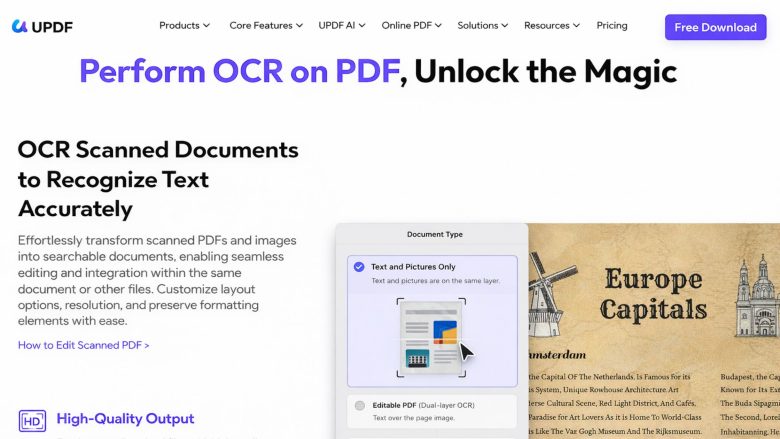
When I work with scanned documents, I often need to turn images into editable text. This is where I used UPDF’s ORC PDF feature to read and extract text in both scanned pages and screenshots. After the text is extracted, I can translate the PDF content into 20+ languages for my work and personal projects.
Additionally, UPDF makes this process straightforward, allowing me to translate text while preserving the original layout. Using it saves me time and ensures my documents remain organized and accurate.
Benefits of Using UPDF for OCR Translation
- Accurate OCR that converts screenshots and scans into searchable text content.
- Keeps most of the original layout and formatting while converting and translating.
- Works across devices, so documents can be scanned and translated on desktop or mobile.
Guide to Translate Scanned Documents Using UPDF
Having explored the best AI OCR translator, follow the steps to learn how to translate a scanned PDF using UPDF OCR and AI:
Step 1. Access UPDF OCR Feature
Once you import the scanned PDF, click the “Tools” option and press the “OCR” option.
Step 2. Begin OCR Process
In the OCR dialogue box, choose the “Editable PDF” mode and choose the languages used in the document. Next, select the “Page Range” you want to extract text from and press the “Convert” button to start the process.
Step 3. Translate OCRed PDF
Once the document is OCRed, press the “UPDF AI” icon and click the “PDF Translation” option. Next, choose the desired language and “All Pages” option. Afterwards, select the output mode and press the “Translate” button to begin translation.
Step 4. Review Translated PDF
Next, open the new document to see the translated version.
Guide to Translate Screenshots of Scanned Documents Using UPDF
Adhere to the steps below to translate screenshots of scanned documents via UPDF AI:
Step 1. Open Scanned PDF and Access Chat Feature
First, press the “UPDF AI” icon and press the “Chat” option. Next, press the “Screenshot” icon under the chat box and select the area you want to translate.
Step 2. Translate Screenshot of Scanned PDF
Afterwards, ask the chat to extract and translate text into a specific language from this image.
2. Yandex Translate
A web-based OCR translator that lets me upload pictures or documents and turn the text into another language. I simply drag and drop files like JPGs or PDFs, and the service recognizes and translates the text. Go through the steps below to see how this tool works:
Step 1. Once you access the main interface, choose the original and desired language and press the “Select File to Upload” option to upload the document.
Step 2. After the file is translated, download the translated document by pressing the “Download Translation” button.
Pros
- Handles mixed-layout files like tables and sidebars accurately.
- Keeps formatting readable after translating text from images.
Cons
- File size limit sometimes blocks my larger PDFs.
3. Easy Screen OCR
This tool helps me capture screenshots and turns them into editable text, using an OCR engine for accurate recognition. It can also translate the extracted text into many different languages, making it useful for multilingual work. Now, look at the guide below to learn how this extracts and translates text:
Step 1. First, install the tool on your PC and access its Preferences. Next, set the capture shortcut keys from the “Hotkeys” tab and press the “Translate” tab to set the target language.
Step 2. Next, perform OCR of the captured image and press the “Translate” button to translate the extracted text.
Pros
- Handles small on-screen text with surprisingly high accuracy.
- Lets me translate captured screenshots into multiple supported languages directly.
Cons
- Only works on Windows desktops, limiting cross‑platform flexibility.
4. PixieBrix
An AI OCR translator that reads text from images and turns it into translatable text. It combines OCR with machine translation so you can quickly convert scans into another language. Next, go through the instructions below to translate text extracted from images:
Instructions. First, upload the image to the platform and select the target language. Next, press the “Translate Image” button to start the process. Once the image is translated, copy the text for use.
Part 3. FAQs About OCR Translators
- Does Google Translate use OCR?
Yes, Google Translate can recognize text in images using OCR, though it may be less accurate for complex layouts.
- Does Windows have built-in OCR?
Yes, Windows has built-in OCR through tools like OneNote and the Windows OCR API. It works for basic documents, but I often prefer a dedicated tool for more accurate results.
- Is OCR text scanner free?
Many OCR tools are free, but advanced AI-based OCR translators like UPDF offer enhanced accuracy through premium features. Moreover, I’ve noticed free tools often limit file size, reduce accuracy, or don’t translate everything correctly.
Conclusion
In the end, this article explained how an OCR Translator helps convert and translate text from images and scanned documents. I also shared practical tools and steps based on my experience to maintain accuracy during document translation. If you need a reliable OCR Translator for everyday document tasks, UPDF is a practical option worth considering.